

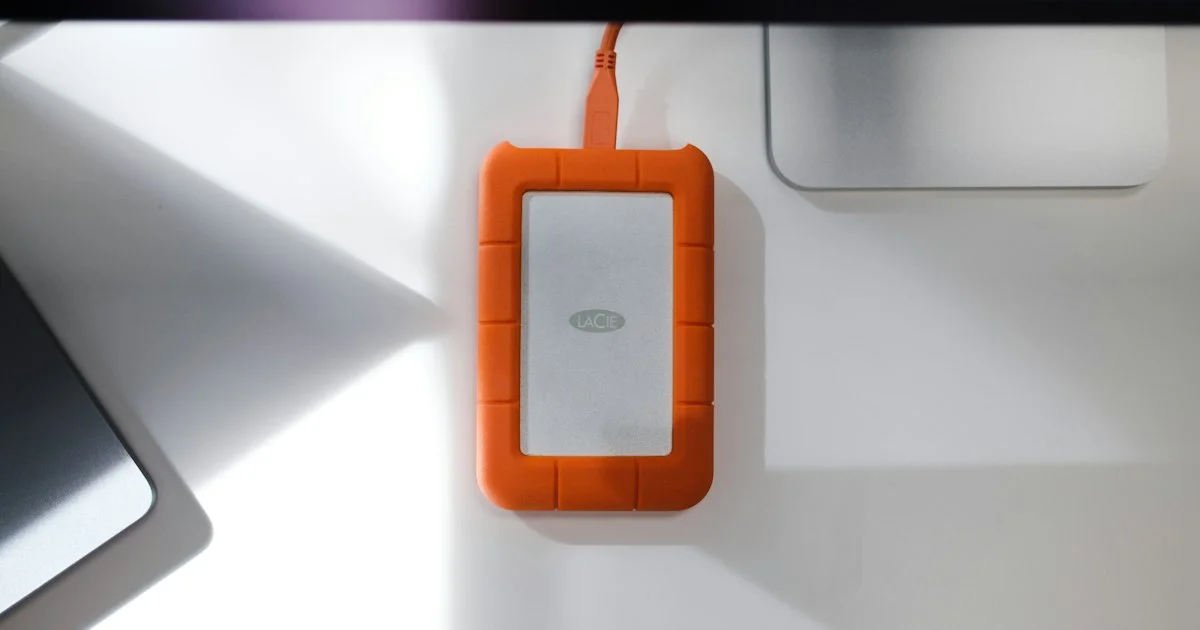
Backup shopping usually starts with a spec sheet and ends with a drive that does not suit the way you actually work. Picking from the top 10 external hard drives for backup has less to do with read speeds than with one plain question: where is this drive going to live? Bolted to a desk, riding in a backpack five days a week, or sitting in a drawer at your sister’s house are three different jobs, and they do not want the same hardware.
Key Takeaways
- Where the drive lives decides the type. Spinning hard drives suit big archives that never move; solid-state drives suit anything that travels.
- The 3-2-1 habit — three copies, two kinds of media, one stored somewhere else — matters more than which brand you buy.
- Portable hard drives use spinning platters, which makes them a poor primary backup for a drive you carry every day.
- An SSD left unplugged in a drawer for years is not archival storage. JEDEC only asks a client SSD to hold data for one year at about 86°F after power-off.
- Hardware encryption and warranty length are the two specs shoppers skip and later wish they had checked.
What the Top 10 External Hard Drives for Backup Have in Common
The short answer: almost nothing, and that is the point. The drives worth buying in 2026 run from a $137 mechanical unit holding six terabytes to a Thunderbolt 5 SSD costing $529 and reading at 6,700 MB/s. They are not competitors but answers to different situations, and a useful backup drive comparison names the situation before it names the drive.
Three things do carry across. Capacity you will not fill in two years is cheaper than buying twice. Hardware encryption costs nothing extra on most models, so there is no reason to skip it. And warranties run two to five years, with the longer ones sometimes including data recovery service — LaCie’s Rugged line bundles it, which is worth more than a spec bump if the drive holds your only copy of something.
The Desk That Never Moves: Buy Capacity, Not Speed
If the drive is going to sit behind your monitor and never leave the room, the whole speed conversation stops mattering. A mechanical drive is the honest choice here. The WD My Passport goes up to 6TB, reads at roughly 120 MB/s over USB 3.2 Gen 1, carries a three-year warranty and AES 256-bit hardware encryption, and has been seen around $137. That read speed sounds terrible next to an SSD, and it is — but a scheduled overnight backup does not care how long it takes.
What you are buying is dollars per terabyte. Every external hard drive ranked highly for value in the last two years has been a spinning drive at a desk, and that has not changed.
The trade-off is fragility. Platters and read heads do not enjoy being knocked off a desk mid-spin, so keep the cable short and the drive out of elbow range — and do not make this the copy you carry.
The Bag That Goes Everywhere: Drop Ratings Over Read Speeds
Here the advice flips completely. Tom’s Hardware puts it bluntly: portable hard drives are made of spinning glass or metal platters, which makes them a poor primary backup if you carry them around. For a bag drive, durability decides everything.
This is not a best portable SSD list in the usual sense, because the ranking changes with your commute:
- Samsung T7 Shield — 1TB to 4TB, 1,050 MB/s read and 1,000 MB/s write, IP65 rated and built to survive a drop of about 10 feet. Around $281 at 4TB. The default pick for photographers and students.
- Kingston XS1000 — 1TB and 2TB, the same 1,050/1,000 MB/s, and about one ounce in weight. Roughly $189. If the drive lives in a jacket pocket, this is the one you forget you are carrying.
- Crucial X10 Pro — up to 4TB at 2,100 MB/s read and 2,000 MB/s write, IP55, rated for a drop of about 6.5 feet, and roughly 2.6 by 2 inches. Around $209.
- SanDisk Extreme Portable SSD — up to 8TB with 256-bit AES hardware encryption, seen near $288. The capacity pick when a whole media archive has to travel.
- LaCie Rugged SSD4 — USB4, around 4,000 MB/s read on Windows and 3,440 MB/s on a Mac, three-year warranty with data recovery included. Built for people who work on both platforms in the same week.
Notice what is not the tiebreaker: raw speed. Between 1,050 MB/s and 2,100 MB/s, a 20GB shoot copies in about 20 seconds versus about 10. Between working and dropped on a train platform, the difference is your week.

Big Files on a Deadline: When Speed Genuinely Earns Its Price
There is one situation where paying for the fast tier is not vanity: when you are waiting on the transfer with somewhere to be — offloading camera cards between shoots, or moving hundreds of gigabytes on a delivery day.
The Corsair EX400U runs on USB4 at over 4,000 MB/s read and 3,700 MB/s write, with prices around $119 at 1TB, $189 at 2TB and $349 at 4TB. One caveat from testing worth knowing before you buy: the metal top gets hot during long sustained writes, and the drive settled to roughly 1,600 to 1,700 MB/s across a 15-minute sustained run. That is still fast. It is just not the number on the box.
Above it sit two specialists. The SanDisk Pro-G40 pairs Thunderbolt 3 with USB-C, hits up to 2,700 MB/s read, and carries a five-year warranty. The LaCie Rugged SSD Pro5 reaches about 6,700 MB/s read and over 5,000 MB/s write on a Thunderbolt 5 Mac, at roughly $329 for 2TB and $529 for 4TB — the fastest single-drive external speeds tested to date, and notably slower on Windows, so it is a Mac purchase.
The Copy You Keep Somewhere Else
The off-site copy is the one that saves you from theft, fire and ransomware, and the one people set up once and never touch. That neglect is a technical problem, not only a discipline problem.
Flash memory holds data by trapping electrons in a floating gate, and that charge leaks over time. The JEDEC standard (JESD218B.01) asks a client-class SSD to retain data for one year at about 86°F after being powered off; enterprise drives are held to three months at about 104°F. Heat accelerates the leak, and a drive that has been written to heavily has less margin to give. An SSD in a hot garage for three years is not a backup you should count on.
For the drawer copy, then, a mechanical drive stored somewhere cool is the safer medium — and either way the fix is the same: plug it in a few times a year, refresh what changed, put it back.
Shared Machines and Borrowed Desks: Encryption Worth Having
A backup drive is a complete copy of your life in a package the size of a phone. If it lives anywhere but your own locked home — an office drawer, a dorm room, a shared studio — encryption stops being theoretical.
Most drives here support 256-bit AES hardware encryption through the maker’s software; the WD My Passport and SanDisk Extreme both do. The Samsung T7 Touch goes further with a fingerprint scanner in the aluminum shell — the version people actually keep switched on, because it removes the password step. It comes in 500GB, 1TB and 2TB at 1,050 MB/s read with a three-year warranty.
Which Situation Are You In?
| Your situation | What it actually needs | What to skip |
|---|---|---|
| Desk archive, never moves | High-capacity mechanical drive, scheduled overnight backups | Paying for USB4 speeds nothing will use |
| Daily commute in a backpack | SSD with an IP rating and a real drop spec; small and light | Any spinning drive as the primary copy |
| Offloading camera cards on a deadline | USB4 or Thunderbolt, and sustained-write figures rather than peak | Judging by the number printed on the box |
| Off-site copy in a drawer | Mechanical drive kept cool, powered up a few times a year | Assuming an unplugged SSD holds data indefinitely |
| Drive shared with a household or office | Hardware encryption, ideally fingerprint unlock | Software-only folder locks and hidden partitions |
| One drive, one budget, one copy of everything | A second cheap drive instead of a better single one | Spending the whole budget on speed |
Setting It Up So You Actually Use It
A backup drive that lives in a box is worth exactly nothing. The setup takes about twenty minutes once:
- Format the drive for the machine that will own it, and give it a name you will recognize in six months — “Photos-Offsite” beats “Untitled”.
- Turn on your operating system’s built-in backup tool and point it at the drive rather than dragging folders by hand. Manual copying is the step that gets skipped.
- Switch on hardware encryption now, while the drive is empty, and put the recovery key somewhere that is not the drive.
- Run a full first backup overnight, then check that a file you actually care about opens from the drive. An untested backup is a rumor.
- Set a recurring reminder for the off-site copy — quarterly is enough for most people — and stick to it.
Related Articles
- Top 5 PDF Editor App Picks for Forms, Scans, and Signatures
- Best Budget Smartphone 2026: What to Look For
- Top 7 Desk Accessories for Productivity Worth Buying
Frequently Asked Questions
A few questions come up every time someone sets up a backup for the first time, and the answers depend more on habits than on hardware.
Is an SSD or a hard drive better for backup?
For a drive that travels, an SSD, because there is nothing inside to jolt. For a large archive that sits on a desk or in a drawer, a mechanical hard drive gives far more capacity per dollar and does not lose charge while unpowered. Most people end up owning one of each, which conveniently satisfies the “two kinds of media” part of the 3-2-1 rule.
How often should I plug in my off-site backup drive?
A few times a year is enough for most households, and quarterly is a good default. Powering the drive up refreshes an SSD’s charge margin, gives a mechanical drive a chance to spin, and — more importantly — gets your newest files onto the copy that lives somewhere else.
Do I still need a physical drive if I pay for cloud backup?
They cover different failures. Cloud storage survives a house fire; a local drive survives an account lockout, a billing lapse, or a slow internet connection on the day you need 400GB back in a hurry. Running both is the reason the 3-2-1 rule says three copies rather than two.
Why is my new drive slower than the speed on the box?
Peak sequential speeds are measured in short bursts. Sustained writes heat the controller and the drive throttles — one USB4 model that advertises over 4,000 MB/s settled near 1,600 to 1,700 MB/s across a 15-minute run. Your port matters too: a USB4 drive in a USB 3.2 Gen 1 port will run at that port’s speed, not the drive’s.
The Bottom Line
The best backup drive is the one that matches where it will live, and the second-best drive you own matters more than the first one being perfect. Buy generous capacity for the desk, buy durability for the bag, and keep one copy out of the building — then actually plug it in.


2 Comments
Comments are closed.