

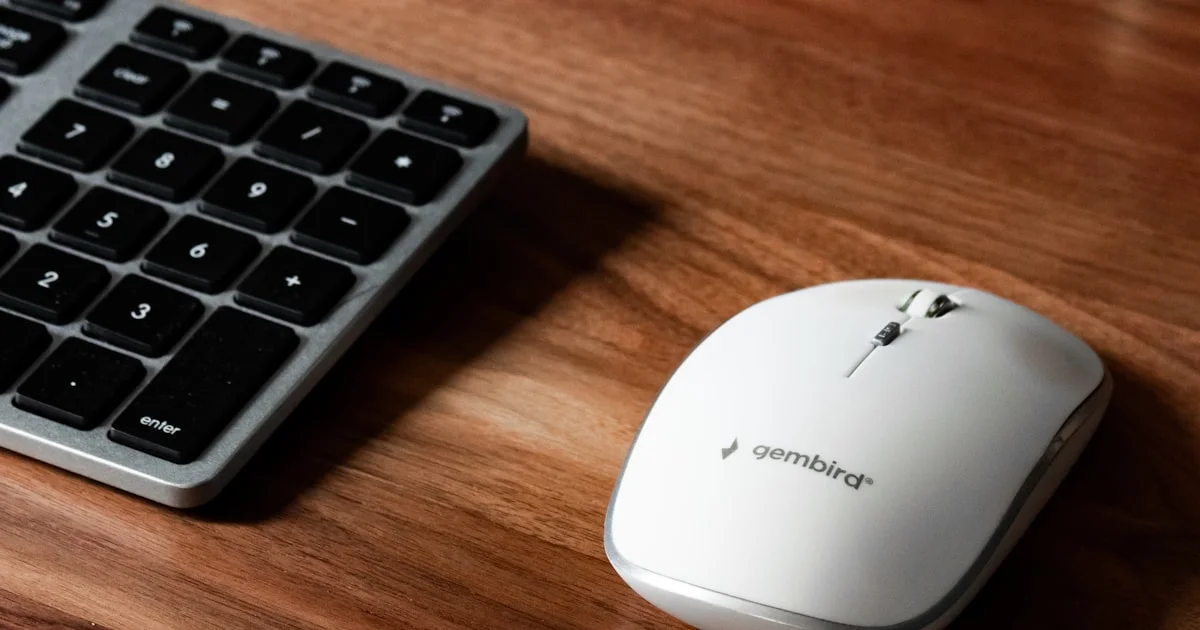
A mouse is the peripheral you touch most and think about least. The best wireless mouse for productivity is rarely the one with the longest feature list — it is the one that fits your hand, puts the buttons where your fingers already are, and never makes you think about its battery.
Key Takeaways
- Fit beats specs. Measure your hand and match the shell before comparing sensors.
- A USB dongle is more reliable than Bluetooth for all-day desk work; Bluetooth wins for travel.
- A free-spin scroll wheel is the single biggest upgrade for long documents and spreadsheets.
- DPI numbers above 3,000 are marketing for office use. Ignore them.
- Rechargeable or AA is a workflow choice, not a quality one. Both are fine.
What Makes the Best Wireless Mouse for Productivity
The short answer: the best wireless mouse for productivity is one that supports your hand in its natural position, tracks without hesitation on your actual desk, and gives you two extra buttons you will genuinely use. Everything past that is refinement.
Productivity mice and gaming mice solve different problems. A gaming mouse optimizes for speed, low weight and a very high polling rate — useful for milliseconds, irrelevant for spreadsheets. An office mouse optimizes for eight hours of wrist comfort, quiet clicks, and shortcuts that save whole seconds at a time. Buying a gaming mouse for office work is the most common and most expensive mistake in this category.
Size Your Hand First
Measure from your wrist crease to the tip of your middle finger. Under about 6.7 inches is a small hand, 6.7–7.5 inches is medium, above 7.5 inches is large. Then decide your grip: palm grip rests the whole hand on the shell and wants a tall back, claw grip arches the fingers and wants a shorter body, fingertip grip touches only with the tips and wants something light and small.
A large mouse under a small hand forces the wrist to work; a small mouse under a large hand collapses the fingers. No sensor quality compensates for either.
Ergonomic Wireless Mouse Shapes Compared
An ergonomic wireless mouse is not one shape — it is three, and they suit different problems.
A contoured right-handed shell is the mainstream choice: a raised back supports the palm, a thumb rest stops the hand clenching, and the whole thing stays familiar. A vertical mouse rotates the hand to a handshake position, which relieves forearm rotation and is the usual recommendation when the wrist and forearm ache — it also takes a week to stop feeling strange. A trackball keeps the hand still entirely and moves only the thumb or fingers, which suits cramped desks and shoulder strain, at the cost of precision in design work.

Weight and Feet
Heavier mice feel planted and steady; lighter ones move faster with less effort. For long office sessions, moderate weight with smooth PTFE feet beats either extreme, because the effort that tires your hand is friction, not mass.
Best Mouse for Office Work: Features That Earn Their Keep
Judging the best mouse for office work comes down to five things you will feel daily.
| Feature | Worth paying for when | Skip it when |
|---|---|---|
| Free-spin scroll wheel | You read long docs or wide spreadsheets | You mostly use short web pages |
| Horizontal scroll / tilt | Spreadsheets and timelines are daily work | You never scroll sideways |
| Silent switches | Shared office, calls, or a sleeping household | You want firm tactile feedback |
| Multi-device pairing | You switch between a laptop and desktop | One computer, always |
| Programmable side buttons | You repeat the same actions all day | You never customize anything |
| High DPI (8,000+) | Rarely — mostly photo and CAD work | General office use, always |
Connection Type Matters More Than People Expect
A 2.4GHz USB receiver is the more dependable option at a desk: lower latency, no pairing drama, and it works before the operating system loads — which matters if you ever need a BIOS menu. Bluetooth frees the port and travels better with a laptop, but can be slow to wake and occasionally drops in crowded radio environments. The best answer for most people is a mouse that offers both and lets you switch.
Wireless Mouse Under 50 Dollars: What You Actually Give Up
A capable wireless mouse under 50 is genuinely easy to find now, because the sensor is no longer the expensive part. At this price you can reasonably expect accurate tracking, multi-month battery life, a comfortable contoured shell and two side buttons.
What you usually give up: the free-spin metal scroll wheel, multi-device switching, silent switches, a rechargeable battery, and the more refined ergonomic shells. None of those are essential — but a free-spin wheel is the one people miss most after using it.
Below roughly $20 the compromises start to bite. Cheap plastics develop a shiny worn patch, the click feel goes mushy within a year, and the software either does not exist or refuses to remember your button assignments.
Setting It Up So It Actually Helps
- Set pointer speed in the operating system first, then adjust DPI on the mouse — not the other way round.
- Turn off pointer acceleration (“enhance pointer precision”) so the same hand movement always travels the same distance.
- Map the side buttons to what you repeat — usually browser back, copy, paste, or switching desktops.
- Use a proper mousepad. Bare desks and glass both degrade tracking more than a cheap sensor does.
- Position the mouse beside the keyboard, not out past it, so the shoulder stays relaxed.
- Wipe the sensor and feet monthly. Most “the mouse is dying” complaints are dust.
The Bottom Line
Match the shell to your hand size and grip, take the USB receiver for desk work, and spend your money on a free-spin scroll wheel and comfortable side buttons rather than DPI you will never use. A well-fitted $40 mouse serves an office day better than a $120 gaming model, and it will still feel right in year three.
Related Articles
- Best Note-Taking App for Students
- Fitness Tracker Buying Guide
- Best Smart Doorbell Camera Buying Guide
Frequently Asked Questions
These are the questions that come up most when people replace an office mouse for the first time in years.
Is a vertical mouse actually better for wrist pain?
Many people find it helps, because it removes the forearm rotation that a flat mouse requires. It is not a treatment, though — persistent pain, numbness or tingling is worth raising with a healthcare professional rather than solving with hardware.
Does a higher DPI make me more productive?
No. Anything above roughly 3,000 DPI is irrelevant for office work, and very high settings make precise clicking harder. Comfortable pointer speed matters; the number on the box does not.
Rechargeable or AA batteries?
Rechargeable models are tidier and usually charge over USB-C while you keep working. AA models often run a year or more and are never out of action — you just swap the cell. Pick the failure mode you would rather deal with.
Can one mouse work with a laptop and a desktop?
Yes, if it supports multi-device pairing. Better models store two or three devices and switch with a button on the base, which is genuinely useful if you move between machines several times a day.


1 Comment
Comments are closed.